
Google Photos
Google LLCPhotography
4.41.35M Reviews
- Version
- Varies With Device
- Installs
- 10.00B
- Age Rating
- Everyone
Screenshots
Our Review of Google Photos
 Analysis by Appyee
My first useful moment with Google Photos came when I needed to find one picture among months of everyday snapshots. Instead of scrolling through my camera roll date by date, I searched for what was in the scene and got to the image quickly. That mix of backup, search, organization, editing, and sharing is what makes the app more than a place to store pictures. It is a photography app from Google LLC, free to use, and available on Android and iOS.
What to expect from the app
I think of Google Photos as a working library for pictures and videos, rather than just another camera roll. Its strongest difference from a basic gallery app is how it helps me retrieve something later: I can browse by date, use search, or look through automatically grouped content instead of relying on folders I remembered to create.
That convenience is especially useful when your photo collection has grown without a plan. A parent might be looking for a school event, a traveler might want to revisit a particular place, and someone who takes lots of screenshots may simply want to get back to an image they saved weeks ago. Search can make those collections feel manageable, though it is still worth checking the results rather than assuming every query will find every image.
The app is popular, but that does not mean it suits every preference. It has an average rating of 4.4 from around 54 million ratings, and it has been installed over 10 billion times. I read that as a sign that the basic idea works for a broad audience, not as a guarantee that its cloud-first approach will feel right to everyone.
Getting started without rushing
When I first open a photo library app, I want to understand where pictures are coming from before I change settings. With Google Photos, I would begin by looking through the main photo feed and checking the backup controls. Decide whether you want backup enabled, and make sure the account shown is the one you intend to use. If you have more than one Google account, that small check can prevent confusion later about where your library is stored.
Backup is a choice, not a requirement for browsing images on your device. If you prefer to keep a smaller collection online, review which folders or sources are included before letting the app handle everything. I also like to consider mobile data before turning on uploads away from Wi-Fi. These checks make the first setup feel deliberate, rather than leaving you to wonder later why a picture has or has not appeared elsewhere.
Your first small success
For a low-stress first test, take or choose a photo you do not mind using, then see whether it appears in the app and how it behaves when you search for a recognizable subject. Try a simple query such as a place or object. This gives you a feel for the app’s central convenience without needing to reorganize your whole library or make a big sharing decision.
Once you have found a picture, try a modest edit and compare it with the original before keeping the change. I find this is a better first experiment than applying several filters at once: a small adjustment makes it easier to decide whether the result still looks like the moment you meant to preserve. You can also share one image with someone you trust before setting up a shared album, so you learn how the handoff feels in practice.
Small habits that make a difference
A useful habit is to search before creating new albums. If you regularly photograph receipts, recipes, or travel details, a search can be quicker than building a folder system for every temporary need. Albums still help when you want a hand-picked collection for a person or occasion, but they work best as a deliberate selection rather than a chore you try to keep perfectly up to date.
Another practical tip is to review backup status when you are relying on the app to protect new pictures. Seeing an image on your phone does not, by itself, tell you whether it has finished uploading. I would check the app before deleting a local copy or depending on a photo being available from another device. That simple pause matters most after a trip, during a busy event, or when you are short on device space.
A personal photo library, with trade-offs
I find the biggest decision with a cloud-based photo library is not whether it can sort pictures, but whether its way of handling them feels comfortable to you. In this section, I’d weigh the convenience of finding and revisiting images against the attention you need to give backup, account choice, and sharing. That makes it easier to decide which parts of the library deserve a place in your routine.
Effortless Organization
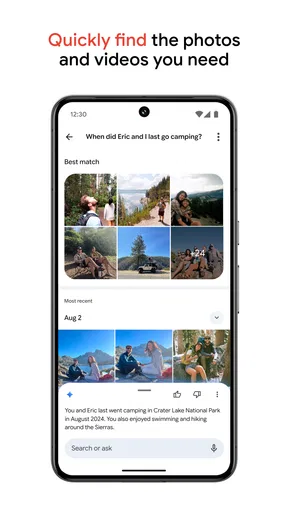
One of the coolest features of Google Photos is its ability to automatically organize your photos. Seriously, who has time to sort through thousands of images? The app uses AI to categorize pictures by people, places, and things. You can search for "beach," "birthday," or even someone's face, and the app will pull up relevant photos in a flash.
There's something almost magical about seeing your photos instantly sorted without lifting a finger. It's like having a personal assistant who knows exactly how you like your stuff organized.
Unlimited Storage (Almost)
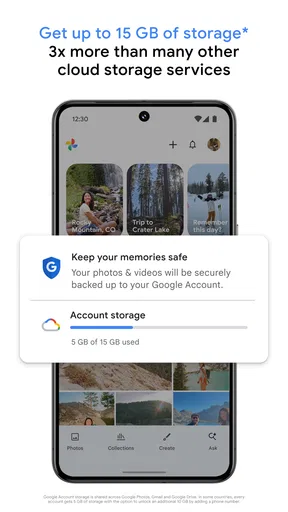
Now, let's talk about storage. If you're working with limited device space, Google Photos offers a solution with its cloud storage. You can upload unlimited photos and videos for free, as long as you're okay with them being compressed to "high quality." It's a small price to pay for never worrying about running out of room again.
For those wanting to keep their original resolution, Google One offers a paid plan that might be worth considering. But for most of us, the free option does the trick.
Sharing Made Simple
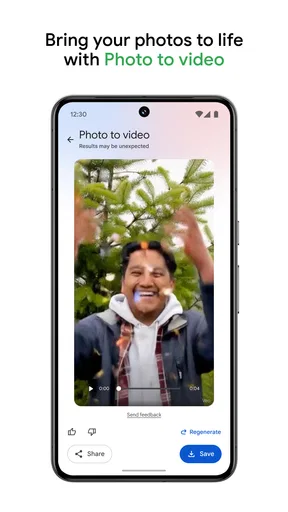
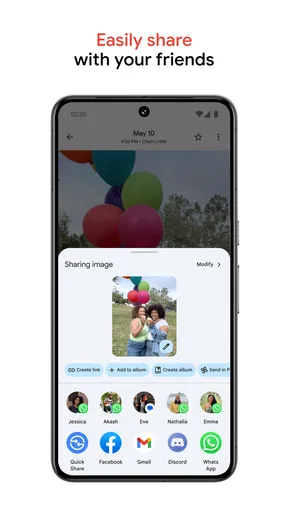
Sharing photos has never been easier. With just a few taps, you can send pictures to family and friends or create shared albums where everyone can contribute. It's perfect for group trips or family gatherings. There's also an option to create movies, collages, and animations with your photos. It's a fun way to relive memories with a bit of creativity.
Advanced Editing Tools
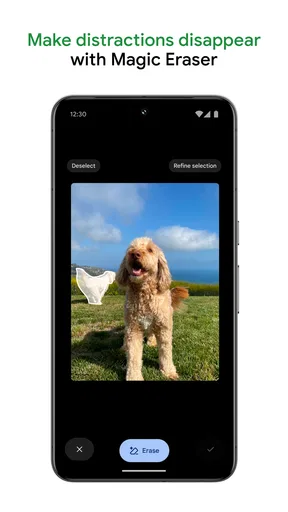
I'm no professional photographer, but the editing tools in Google Photos make me feel like one. You can tweak brightness, contrast, and color, or use pre-set filters to enhance your images. The app even has an "auto" feature that optimizes your photos with one tap. If you're looking to get more hands-on, the "light" and "color" sliders give you precise control over your edits.
Memories and Rediscovery
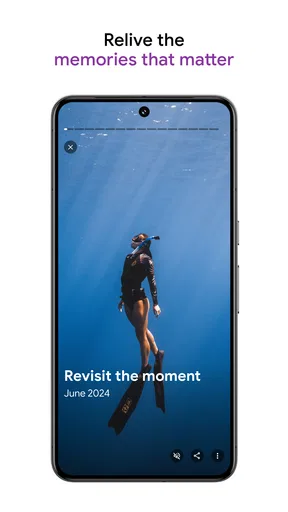
One of my favorite features is the "Memories" section. The app curates highlights from past years, allowing you to rediscover forgotten moments. It's a nostalgia trip that often brings a smile to my face. You can also customize which memories you want to see, tailoring the experience to your liking.
Privacy and Security
Security is a big deal, and Google Photos takes it seriously. Your photos are stored securely, and you have control over who can see them. The app provides options to back up photos only over Wi-Fi to save on data, and you can manage your backup settings to fit your privacy needs.
Where it fits—and where it doesn’t
Compared with the built-in gallery on a phone, Google Photos is more useful when I want a searchable library and access to backed-up pictures across devices. A standard gallery can be the better choice if you mainly browse local files, prefer not to connect a photo collection to a cloud account, or want the simplest possible view of what is stored on that handset. The built-in app may also fit better when its tools already match the way you sort and edit.
For more careful photo work, I would not treat this as a replacement for a dedicated editing app. Its adjustments are handy for quick improvements and everyday sharing, but a photographer who needs a specialized workflow may want a separate editor. I also would not assume that cloud backup is the same as a complete archival strategy: keep another copy of important images if losing access would cause a serious problem.
A realistic day with the library
Imagine taking pictures at a family gathering, then wanting to send a few favorites to relatives the next morning. I would first check that the new images are backed up if I plan to access them elsewhere, then search or browse to pick the strongest shots. A shared album makes sense if several people should add their own pictures; for a small, one-off selection, sending individual images is simpler and avoids creating a collection nobody needs to maintain.
That distinction is easy to overlook. Shared albums are useful when the group has an ongoing reason to collect pictures, but they are not automatically the best way to pass along every batch of photos. Before sharing, I would review the selection and the audience, especially if the camera roll includes unrelated personal images. A quick check is more reliable than assuming the app’s convenience makes every sharing choice harmless.
Understanding storage before deleting anything
The original article’s description of free, unlimited uploads is not a safe assumption to build a new setup around. Storage terms can change, and the app’s backup options and account storage should be checked directly before deciding what to upload or delete. If keeping full-resolution originals matters to you, confirm the current choices and how they affect your account rather than relying on an old rule of thumb.
Most importantly, freeing space on a phone and deleting a photo from a library are not the same task. I would use the app’s own storage-management controls only after confirming that the images I want to keep have finished backing up and that I understand what the selected action removes. If you are unsure, leave the local files in place until you have checked the backup from another device or location.
Search, edits, and memories in everyday use
Search is most helpful when you use words that describe what is visible, not only the event name you remember. If a search misses a picture, try a broader term or browse around the date instead of assuming the photo is gone. The app’s automatic organization saves effort, but it cannot read your mind; a vague or unusual query may take a couple of attempts.
For edits, I prefer to make one change at a time and compare the result with the untouched image. That is a simple way to avoid overdoing color or brightness, especially when I am editing quickly on a phone screen. Memories can also be a pleasant way to revisit older pictures, but the feature is personal by nature: if a resurfaced moment is unwelcome, use the available controls to adjust what appears rather than feeling obliged to keep every prompt enabled.
Privacy is a practical setting, not a slogan
Because a photo library can include family, travel, documents, and personal moments, I would make sharing choices carefully. Check which images are in an album before inviting others, and think about whether people should be able to contribute or only view. For sensitive material, a general shared album may not be the right place at all. The app gives you ways to manage backup and sharing, but the useful protection comes from choosing settings that match the contents.
I would also keep account access in mind. If you change phones or use more than one account, confirm that you are viewing the intended library before assuming pictures have disappeared. This is a common source of worry: a missing image may be in a different account, still waiting to back up, or simply outside the current search results. Checking those possibilities is more productive than immediately deleting and reinstalling the app.
Who I would recommend it to
I would recommend Google Photos to someone who takes many pictures, wants to find them later without maintaining a strict folder system, and is comfortable using a Google account for a photo library. It is particularly convenient for people who move between Android and iOS devices or who want a straightforward way to collect pictures from shared occasions. Its broad reach is reflected in an Everyone age rating, and Google Photos has been available since May 28, 2015.
I would hesitate to recommend it to someone who wants every image kept only on one device, dislikes cloud-based organization, or needs a specialist editing workflow. It may also feel like more than you need if your built-in gallery already handles local browsing and backup in the way you prefer. In that case, keeping a simpler gallery and a separate backup routine may be a better fit than moving your whole collection.
My final recommendation
For a first-time user, I would start small: confirm the right account, choose backup settings carefully, test a search, and make one edit or share one picture. Those steps show what the app is good at without asking you to reorganize your entire photo history on day one. It is free, belongs to the photography category, and has a broad user base, with around 1.3 million written reviews alongside its 4.4 average rating.
My overall view is positive, with an important qualification: the convenience is worth it only if you understand where your pictures are backed up and how sharing works. The app’s search and organization can take a messy camera roll and make it easier to use, while its editing and memory features add useful extras. Just keep a second copy of irreplaceable images and choose cloud settings deliberately. If that balance suits you, it can become a dependable everyday home for the photos you actually want to find again.
Privacy and Permissions
See what permissions an app requests and how it handles your data.
- Identity
- find accounts on the device, add or remove accounts, read your own contact card
- Calendar
- read calendar events plus confidential information, add or modify calendar events and send email to guests without owners' knowledge
- Contacts
- find accounts on the device, read your contacts, modify your contacts
- Location
- approximate location (network-based), precise location (GPS and network-based)
- Phone
- read phone status and identity
- Photos/Media/Files
- read the contents of your USB storage, modify or delete the contents of your USB storage
- Storage
- read the contents of your USB storage, modify or delete the contents of your USB storage
- Camera
- take pictures and videos
- Microphone
- record audio
- Device ID & call information
- read phone status and identity
- Other
- view network connections, pair with Bluetooth devices, change network connectivity, connect and disconnect from Wi-Fi, measure app storage space, full network access, control Near Field Communication, read sync settings, run at startup, set wallpaper, draw over other apps, use accounts on the device, control vibration, prevent device from sleeping, modify system settings, toggle sync on and off, install shortcuts, read Google service configuration
Verdict
Strengths of Google Photos
- Unlimited storage for high-quality photos.
- Automatic backup keeps memories safe.
- Intuitive search using AI technology.
- Easy sharing with friends and family.
- Seamless integration with Google services.
Limitations of Google Photos
- Limited editing tools for advanced users.
- Requires internet for most features.
- Original quality storage isn't free.
- Can consume significant mobile data.
- Privacy concerns with data handling.
Other Releases by Google LLC
View All
Google Calendar
Productivity4.6

Google Messages
Communication4.6

Tools4.0

Google TV
Video Players & Editors3.9
Similar Picks in This Category
View All
Gallery
Google LLC4.2

Picsart AI Photo Editor, Video
PicsArt, Inc.3.9

B612 AI Photo&Video Editor
SNOW Corporation4.1

BeautyPlus-Selfie Photo Editor
PIXOCIAL TECHNOLOGY (SINGAPORE) PTE. LTD.4.5

Remini - AI Photo Enhancer
Bending Spoons4.1

FaceApp: Perfect Face Editor
FaceApp Technology Ltd4.3
You May Also Like
View All

Frequently Asked Questions
What is Google Photos and how does it work?
Google Photos is a cloud-based photo and video storage service that allows users to back up their media to the cloud. It provides features such as automatic organization, powerful search capabilities, and easy sharing options. Users can access their media from any device with internet connectivity, ensuring that their memories are always safe and accessible.
How much storage does Google Photos offer for free?
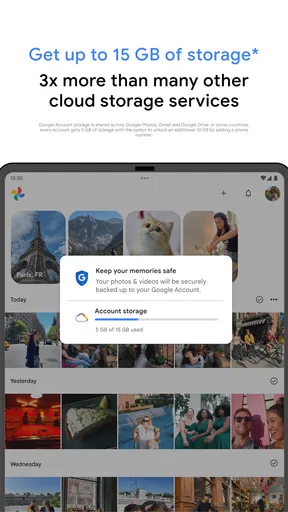
Google Photos offers 15 GB of free storage shared across Google services, including Drive and Gmail. Photos and videos backed up in 'High Quality' (compressed) do not count towards this limit, but original quality media does. Users can purchase additional storage through Google One if needed.
Is Google Photos available on both Android and iOS?
Yes, Google Photos is available on both Android and iOS platforms. It can be downloaded through the Google Play Store for Android devices and the Apple App Store for iOS devices. The app provides a consistent experience across both operating systems, allowing users to sync and access their media seamlessly.
How secure is my data on Google Photos?
Google Photos uses advanced security measures to protect user data. Photos and videos are encrypted while in transit and at rest. Google accounts are protected by industry-leading security features, including two-step verification. However, users should always ensure their accounts are secure by using strong passwords and enabling additional security measures.
Can I share my photos and albums with others using Google Photos?
Yes, Google Photos allows for easy sharing of individual photos, videos, and entire albums with others. You can share links directly through the app, which can be sent via messaging apps, email, or social media. Shared recipients can view and collaborate on shared albums if given permission.
